Audit iPhone App Permissions: Stop Background Tracking in Minutes
Advertisements
Auditing your iPhone app permissions is crucial for safeguarding personal data, and it can be effectively completed in under 10 minutes by systematically reviewing and adjusting access settings for location, microphone, camera, and contacts.
In an age where digital privacy is increasingly scrutinized, understanding how to audit your iPhone app permissions to stop background tracking in under 10 minutes is not just a convenience—it's a necessity. Many apps, often without explicit user awareness, collect data in the background, impacting battery life and, more importantly, your personal privacy. This guide will empower you to take back control.
Understanding iPhone App Permissions and Their Impact
Every app on your iPhone requests access to certain features and data, from your camera and microphone to your location and contacts. While some permissions are essential for an app's core functionality, others might be excessive or unnecessary, leading to potential background tracking and data collection. Understanding what each permission entails is the first step toward effective privacy management.
These permissions are designed to protect you, but they also place the responsibility on the user to make informed choices. Granting an app 'always' access to your location, for instance, means it can track your movements even when you're not actively using it. This can be a significant privacy concern for many users.
Why Permission Audits Matter
Regularly auditing your app permissions helps in several ways. It minimizes your digital footprint, reduces the risk of data breaches, and can even improve your iPhone's battery life by preventing apps from constantly running in the background. It's a proactive measure against unwanted surveillance.
- Enhanced Privacy: Limits what data apps can collect about you.
- Improved Security: Reduces exposure to potential data exploits.
- Better Battery Life: Stops apps from consuming power unnecessarily.
- Data Minimization: Ensures only essential data is shared.
Ultimately, a permission audit is about exercising your right to privacy in a digital world. It's about making conscious decisions about who gets to access your personal information and under what circumstances. This foundational understanding sets the stage for a quick yet thorough audit.
Step-by-Step Guide: Accessing Your Privacy Settings
The journey to stopping background tracking begins in your iPhone's Settings app. Apple has made significant strides in centralizing privacy controls, making it relatively straightforward to review and adjust app permissions. Knowing where to look is half the battle.
Open the 'Settings' app, which is typically represented by a gear icon on your home screen. From there, you'll navigate to the 'Privacy & Security' section. This central hub is where all your app permissions are listed and managed, giving you a comprehensive overview.
Navigating to Privacy & Security
Once inside 'Privacy & Security', you'll find a list of categories like Location Services, Contacts, Calendars, Reminders, Photos, Microphone, Camera, and more. Each of these categories represents a type of data or hardware access that apps can request. Tapping on each one reveals which apps have been granted access.
It's important to approach this section systematically. Don't rush through it. Take a moment to consider each category and the apps listed under it. This careful review ensures that you don't overlook any critical permissions that might be compromising your privacy without your knowledge.
- Open Settings: Locate the gray gear icon on your home screen.
- Scroll to Privacy & Security: Find this section in the main Settings menu.
- Explore Categories: Tap on each permission type to see app access.
This initial exploration of your privacy settings is a critical part of the audit. It provides a clear snapshot of your current privacy landscape and highlights areas where immediate action might be needed. Being familiar with this section will make future audits even quicker.
Auditing Location Services: Your Digital Footprint
Location Services is arguably one of the most sensitive permissions, as it allows apps to track your physical whereabouts. Many apps request this access, but not all truly need it to function. This section requires careful consideration to balance functionality with privacy.
Within 'Privacy & Security', tap on 'Location Services'. Here, you'll see a list of all apps that have requested or been granted access to your location. For each app, you'll typically see options like 'Never', 'Ask Next Time Or When I Share', 'While Using the App', or 'Always'.
Making Informed Choices for Location Access
For most apps, 'While Using the App' is a sufficient level of access. This ensures the app can use your location when you're actively interacting with it, but stops tracking once you close it. 'Never' is appropriate for apps that clearly don't need your location, such as a note-taking app or a calculator.
The 'Always' option should be reserved for apps where continuous location tracking is genuinely essential and beneficial, such as a family safety app or a fitness tracker you use to map runs. Be very selective with 'Always' access, as it can significantly impact your privacy and battery life.


Additionally, look for the 'Precise Location' toggle under each app. Turning this off for apps that don't need exact coordinates can further enhance your privacy, providing them only with an approximate location. This granular control is a powerful tool in your privacy arsenal.
Reviewing and adjusting your Location Services settings is a cornerstone of stopping background tracking. It's a quick process that yields significant privacy benefits by limiting who knows where you are at all times. Take a moment to consider the necessity of each app's access.
Managing Microphone and Camera Permissions
Microphone and camera access are critical permissions that, if misused, can lead to serious privacy intrusions. Apps that have access to your microphone could potentially listen to your conversations, while camera access could allow them to record video or take photos without your explicit knowledge at the moment of capture. It’s vital to scrutinize these permissions.
Navigate back to 'Privacy & Security' in your iPhone settings. You'll find separate entries for 'Microphone' and 'Camera'. Tapping on each will display a list of apps that have requested access to these hardware components. This is where you can see which apps might be 'listening in' or 'watching'.
Controlling Audio and Visual Access
For both microphone and camera permissions, the approach is straightforward: if an app doesn't explicitly need it for its core function, turn off access. For example, a social media app might need camera access to post photos, but does it need microphone access if you're not recording videos? A messaging app might need both for video calls, but a simple game likely needs neither.
- Microphone: Disable for apps not requiring voice input or recording.
- Camera: Revoke access for apps not designed for photo or video capture.
- Review Defaults: Many apps request these by default, so check every entry.
Apple provides visual indicators when your microphone or camera is in use (a green or orange dot at the top of your screen), but proactive management is always better than reactive detection. Regularly checking these settings ensures that no app is secretly recording your environment.
By carefully managing microphone and camera permissions, you significantly reduce the risk of unwanted audio or visual surveillance. This step is quick but incredibly impactful in securing your personal space from digital intrusion. Make sure to be thorough in your review.
Contacts, Photos, and Other Sensitive Data Permissions
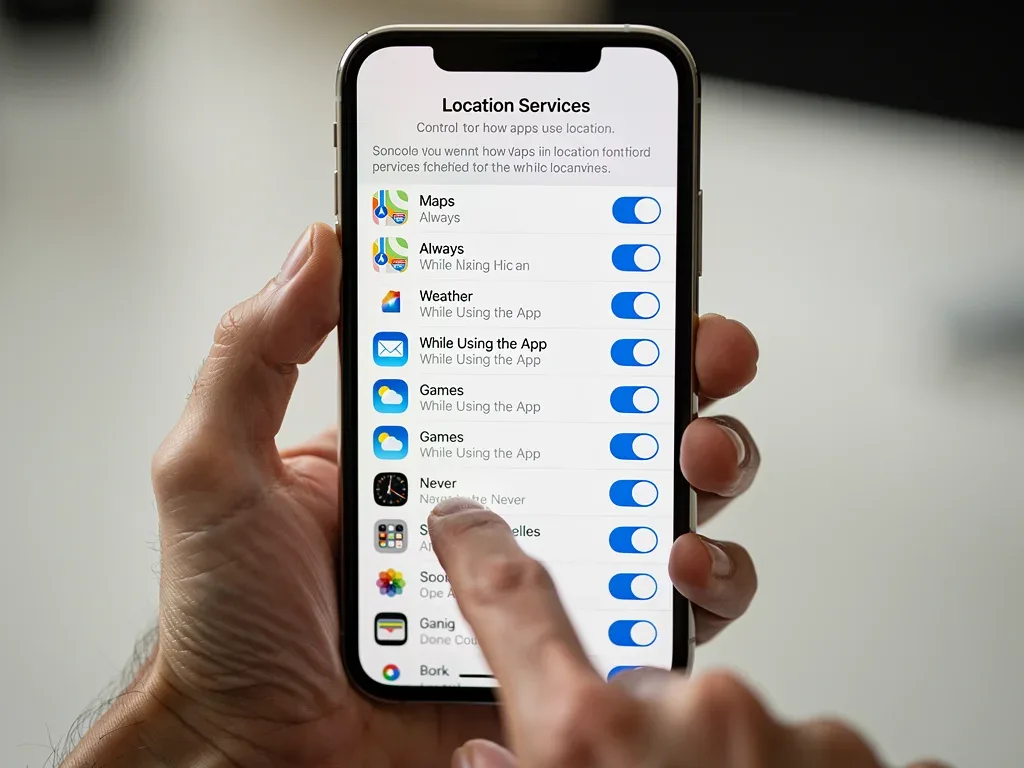
Beyond location, microphone, and camera, your iPhone stores a wealth of other sensitive personal data, including contacts, photos, calendar events, and health information. Apps often request access to these categories, and reviewing them is an integral part of a comprehensive privacy audit.
In the 'Privacy & Security' section, scroll down to find categories such as 'Contacts', 'Photos', 'Calendars', 'Reminders', 'Health', and 'Local Network'. Each of these sections lists the apps that have requested or been granted access to that specific type of data.
Protecting Your Personal Information
When reviewing 'Contacts', consider if a messaging app truly needs access to your entire address book, or if individual sharing would suffice. For 'Photos', many apps might request 'Add Photos Only' or 'Selected Photos' rather than 'All Photos', which is a more private option. Always opt for the most restrictive access that still allows the app to function as needed.
The 'Local Network' permission, for instance, allows apps to discover and communicate with devices on your local network. While necessary for some smart home apps or casting devices, it's often unnecessarily requested by others. Be discerning about which apps truly need this broad access.
- Contacts: Limit access to apps that genuinely need your address book for communication.
- Photos: Use 'Selected Photos' or 'Add Photos Only' whenever possible, instead of 'All Photos'.
- Health Data: Be extremely cautious; only grant access to trusted health and fitness apps.
- Local Network: Restrict to smart home devices or casting apps only.
Taking the time to go through these additional data permissions ensures a holistic approach to your privacy audit. Each toggle you adjust contributes to a more secure and private iPhone experience, effectively stopping various forms of background tracking and data harvesting.
Beyond Permissions: Additional Privacy Safeguards
While auditing app permissions is a powerful first line of defense, maintaining robust digital privacy on your iPhone extends beyond these settings. There are several other crucial steps you can take to further safeguard your data and minimize background tracking.
Consider reviewing your 'Tracking' settings within 'Privacy & Security'. Under 'Tracking', you'll find an option called 'Allow Apps to Request to Track'. Disabling this means apps can no longer ask to track your activity across other companies' apps and websites, a significant step in limiting targeted advertising and data profiling.
Advanced Privacy Features
Furthermore, regularly reviewing your app usage and deleting apps you no longer use is a simple yet effective privacy measure. Every app you remove is one less potential vector for data collection. It's a digital decluttering that pays dividends in privacy.
Another often-overlooked area is 'App Privacy Report', also found under 'Privacy & Security'. This feature provides a detailed overview of how apps have accessed your data and various sensors over the last seven days. It’s an invaluable tool for identifying apps that might be behaving suspiciously or collecting more data than you realize.
Finally, ensure your iPhone's operating system is always up to date. Apple frequently releases security patches and privacy enhancements with each iOS update. Running outdated software can leave you vulnerable to known exploits that newer versions have already addressed.
By combining a thorough app permission audit with these additional privacy safeguards, you create a comprehensive defense against unwanted background tracking. These measures collectively strengthen your iPhone's security posture and ensure your personal data remains truly personal.
Maintaining Privacy: Regular Audits and Best Practices
Achieving privacy on your iPhone isn't a one-time task; it's an ongoing commitment. The digital landscape evolves rapidly, with new apps, features, and tracking methods emerging constantly. Therefore, regular audits and adherence to best practices are essential to maintaining your privacy over the long term.
Make it a habit to perform a quick permission audit every few months, or whenever you install a significant number of new apps. New app installations are prime opportunities for privacy settings to be overlooked or granted too broadly. A routine check ensures nothing slips through the cracks.
Establishing a Privacy Routine
Beyond scheduled audits, cultivate a mindful approach to app usage. Before downloading a new app, consider its reputation, read its privacy policy (even if briefly), and think critically about the permissions it requests. If an app seems to ask for excessive access for its stated purpose, it might be a red flag.
Be wary of free apps, as many monetize through data collection. While not all free apps are privacy risks, it's a general principle worth considering. Also, leverage Apple's built-in privacy features like 'Sign in with Apple' whenever available, as it offers enhanced anonymity.
- Schedule Audits: Plan to review permissions quarterly or semi-annually.
- Read Privacy Policies: Understand what data apps collect before installing.
- Delete Unused Apps: Reduce your digital footprint by removing unnecessary software.
- Update iOS Regularly: Benefit from the latest security and privacy enhancements.
By integrating these best practices into your digital routine, you transform privacy management from a daunting task into an ingrained habit. This continuous vigilance ensures that your efforts in learning how to audit your iPhone app permissions to stop background tracking in under 10 minutes yield lasting results, keeping your personal information secure and private.
| Key Audit Area | Privacy Action |
|---|---|
| Location Services | Set to 'While Using' or 'Never' for most apps; disable 'Precise Location' when possible. |
| Microphone & Camera | Revoke access for apps not requiring audio/visual input for core functions. |
| Contacts & Photos | Grant 'Selected Photos' or 'Add Photos Only'; limit contact access to essential apps. |
| Tracking Settings | Disable 'Allow Apps to Request to Track' to prevent cross-app data collection. |
Frequently Asked Questions About iPhone Privacy
Why is auditing iPhone app permissions important?▼Auditing iPhone app permissions is crucial for protecting your personal data, preventing unwanted background tracking, and enhancing your overall digital privacy. It helps you control which apps access sensitive information like your location, microphone, and photos, reducing your digital footprint.
How long does it take to audit app permissions?▼A comprehensive audit of your iPhone app permissions can typically be completed in under 10 minutes. By systematically going through the 'Privacy & Security' settings, you can quickly review and adjust access for various categories, making the process efficient and effective.
What are the most critical permissions to review?▼The most critical permissions to review include Location Services, Microphone, Camera, Contacts, and Photos. These categories often grant apps access to highly sensitive personal data. Carefully limiting access to only essential apps significantly boosts your privacy.
Can restricting permissions break an app's functionality?▼Yes, restricting essential permissions can sometimes affect an app's functionality. For example, a navigation app needs location access. However, for many apps, restrictive settings like 'While Using' or 'Selected Photos' are sufficient without impairing core features. Always test after adjusting.
How often should I audit my iPhone app permissions?▼It's recommended to audit your iPhone app permissions regularly, ideally every few months or whenever you install new applications. This routine helps ensure that your privacy settings remain aligned with your preferences and that no new app is inadvertently collecting excessive data.
Conclusion
Taking control of your digital privacy on an iPhone is an empowering and surprisingly quick process. By understanding how to audit your iPhone app permissions to stop background tracking in under 10 minutes, you equip yourself with the knowledge to safeguard your personal data effectively. This proactive approach not only enhances your security but also contributes to a more mindful and secure digital experience, ensuring that your iPhone remains a personal device, truly under your control.
