Eliminate Cloud Storage Waste: Reclaim 150GB on iOS & Android
Advertisements
To effectively eliminate cloud storage waste and reclaim significant space on iOS and Android, regularly audit and delete duplicate or unnecessary files, leverage device-specific optimization tools, and manage app data efficiently across all your connected cloud services.
Are you constantly battling with 'storage full' notifications on your smartphone or tablet? Many users find themselves grappling with dwindling digital space, often due to an accumulation of unnecessary data in their cloud storage. This guide will show you how to effectively eliminate cloud storage waste and potentially reclaim a massive 150GB of free space on both your iOS and Android devices.
Understanding Cloud Storage Bloat
Cloud storage has become an indispensable tool for backing up our precious memories, documents, and app data. However, convenience often comes with a hidden cost: digital clutter. Over time, multiple backups, duplicate files, and forgotten data can accumulate, leading to significant storage bloat across platforms like iCloud, Google Drive, Dropbox, and OneDrive.
This accumulation isn't just an aesthetic problem; it can impact device performance, slow down synchronization, and even lead to unexpected subscription costs if you exceed free tiers. Identifying the sources of this bloat is the first crucial step toward a leaner, more efficient digital life.
Common Culprits of Cloud Overload
Several factors contribute to cloud storage becoming unwieldy. Understanding these will help you target your cleanup efforts more effectively.
- Duplicate Photos and Videos: Often, when transferring files or using multiple backup services, duplicates are created.
- Large Media Files: High-resolution photos and 4K videos consume vast amounts of space.
- App Backups: Many apps automatically back up their data to the cloud, even if you no longer use them.
- Old Documents and Downloads: Files downloaded or created years ago might still reside in your cloud, forgotten.
By systematically addressing these common issues, you can begin to make a significant dent in your overall cloud storage usage. The goal is not just to delete, but to organize and prevent future accumulation.
Strategies for iOS Cloud Storage Optimization
iOS devices primarily rely on iCloud for cloud storage. While iCloud offers seamless integration, it's also prone to accumulating unnecessary data. Optimizing your iCloud storage is key to reclaiming space on your iPhone or iPad.
The process involves a methodical review of what's being stored and adjusting settings to prevent future bloat. This isn't a one-time fix but a habit to cultivate for long-term digital hygiene.
Managing iCloud Photos and Videos
Photos and videos are often the biggest storage hogs. iCloud Photos can sync your entire library, which is great for accessibility but bad for storage if not managed.
- Review and Delete Unwanted Media: Go through your Photos app and delete blurry, duplicate, or unwanted pictures and videos. Remember to empty the 'Recently Deleted' album afterwards.
- Optimize iPhone Storage: In Settings > Photos, enable 'Optimize iPhone Storage'. This keeps full-resolution photos and videos in iCloud and smaller, device-optimized versions on your phone.
- Disable Photo Stream: If you use iCloud Photos, Photo Stream might create duplicates across devices. Consider disabling it if it's redundant.
These steps alone can free up several gigabytes, especially for users with extensive media libraries. Be mindful of what you truly need to keep in full resolution on your device versus what can live solely in the cloud.
Android Cloud Storage Cleanup Techniques
Android users typically leverage Google Drive, Google Photos, and other integrated Google services for cloud storage. Google's ecosystem is powerful but also capable of accumulating massive amounts of data without proper management.
The key to Android cloud optimization lies in understanding how different Google services utilize your shared storage quota and then targeting those areas for cleanup. This often involves using Google's own tools and services.
Leveraging Google Drive and Google Photos Tools
Google offers several built-in features to help manage your storage across its services. Utilizing these effectively is crucial.
- Google Drive Storage Management: Visit drive.google.com/drive/quota to see files sorted by size. Delete large, unnecessary files directly from here.
- Google Photos Review: For older content, Google Photos offered 'High Quality' (compressed) uploads that didn't count against storage. Now, all new uploads count. Review your library for blurry shots, screenshots, and duplicates, then delete them.
- Gmail Attachments: Large attachments in Gmail can consume significant space. Search for emails with large attachments and delete them if no longer needed.
Regularly cleaning these Google services can drastically reduce your cloud footprint. Remember that deleting from one Google service typically frees up space across the shared quota.
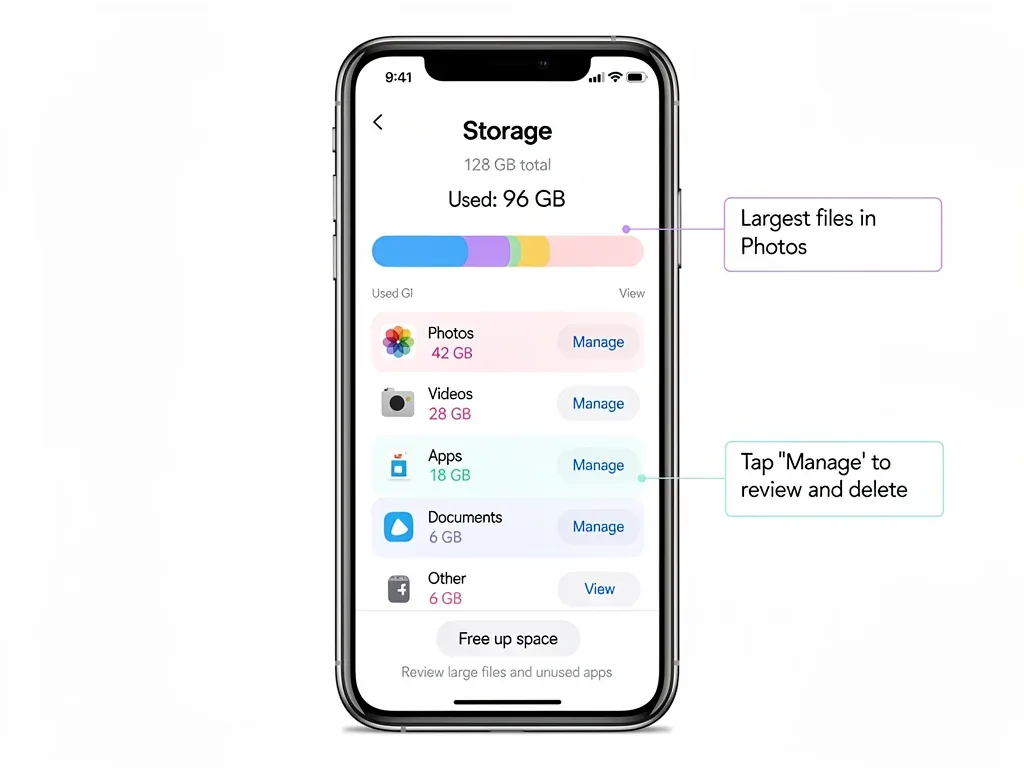
Identifying and Deleting Duplicate Files
Duplicate files are notorious storage eaters, silently accumulating across your devices and cloud services. Whether it's the same photo downloaded multiple times, a document saved in different folders, or redundant backups, these files contribute significantly to cloud bloat.
While manual detection can be tedious, especially for large libraries, there are methods and tools that can simplify this process and ensure you don't accidentally delete original copies.
Tools and Manual Methods for Duplicate Detection
Both iOS and Android, along with their respective cloud services, offer some ways to manage duplicates, though third-party tools often provide more comprehensive solutions.
On iOS:
- Photos App 'Duplicates' Album: Newer iOS versions include a 'Duplicates' album in the Photos app, which automatically identifies and helps merge or delete duplicate photos and videos.
- Third-Party Cleaner Apps: Apps like Cleaner for iPhone or Gemini Photos can scan for and help remove duplicate and similar photos.
On Android:
- Google Files App: Google's Files app has a 'Clean' tab that can identify duplicate files, old downloads, and large media files for easy deletion.
- Gallery Apps: Some Android gallery apps have built-in duplicate detection features.
For cloud services like Google Drive or Dropbox, you might need to use desktop applications or web interfaces with search functions to identify and delete duplicates. Being vigilant about how you save and transfer files can also prevent their creation.
Managing App Data and Backups
Applications, especially those with extensive data, can consume substantial cloud storage through their backups. Many apps, particularly on Android, automatically back up their data to Google Drive, and iOS apps do the same for iCloud. This can include game saves, chat histories, and application settings that you might no longer need.
Regularly reviewing and pruning these app backups is a critical step in reclaiming significant portions of your cloud storage. It ensures that only relevant and current app data is being stored.
Reviewing and Deleting Old App Backups
The process for managing app backups differs slightly between iOS and Android, but the principle remains the same: identify what's being backed up and remove what's obsolete.
On iOS:
- Go to Settings > [Your Name] > iCloud > Manage Account Storage > Backups.
- Here you will see a list of your device backups. You can delete old device backups that are no longer needed (e.g., from an old iPhone you no longer own).
- Under 'iCloud Storage' > 'Manage Account Storage', you can also see 'Apps Using iCloud'. Review this list and toggle off apps you don't want to back up, or delete their data entirely.
On Android:
- Open Google Drive.
- Tap the three horizontal lines (menu) and select 'Backups'.
- You'll see a list of device backups and WhatsApp backups. Tap on a backup to see more details and delete old, irrelevant ones.
- For individual app data, some apps allow you to manage their backup settings within the app itself.
Deleting old device backups, especially from devices you no longer use, can immediately free up gigabytes of space. Similarly, disabling backups for apps you rarely use or whose data isn't critical can prevent future storage issues.
Optimizing Cloud Settings and Habits
Beyond simply deleting files, adopting smarter cloud storage habits and optimizing your device settings can prevent future accumulation of waste. This proactive approach is essential for long-term storage management and ensuring you don't repeatedly face the 'storage full' dilemma.
Small changes in how you interact with your devices and cloud services can lead to significant improvements in storage efficiency over time. It's about working smarter, not harder.
Proactive Measures for Cloud Health
Several settings and habits can help keep your cloud storage lean and efficient. Integrating these into your routine will make a big difference.
- Selective Syncing: For services like Dropbox or OneDrive, choose which folders sync to your device, preventing unnecessary downloads.
- High-Efficiency Formats: On iOS, use 'High Efficiency' (HEIF/HEVC) for photos and videos in Camera Settings to save space without significant quality loss.
- Regular Review Schedule: Set a recurring reminder (e.g., monthly or quarterly) to review your cloud storage and delete old files.
- Empty Trash/Recycle Bin: Remember that deleted files often sit in a 'Trash' or 'Recently Deleted' folder for a period before being permanently removed, still consuming space.
By implementing these proactive measures, you create a system that naturally reduces waste. This not only frees up immediate space but also cultivates better digital habits, saving you time and potential costs in the future.

Exploring Alternative Storage Solutions
While optimizing your current cloud storage is crucial, sometimes the sheer volume of data you need to store necessitates exploring alternative or supplementary solutions. Relying solely on one cloud provider, especially with large media libraries, can quickly exhaust free tiers and lead to escalating subscription costs.
Diversifying your storage strategy can provide both cost savings and greater flexibility. This might involve a combination of different cloud services, external hardware, or even local network storage.
Considering External Drives and Cold Storage
For truly massive archives of data that you don't need immediate, constant access to, external drives or 'cold storage' solutions can be highly effective and cost-efficient.
- External Hard Drives: For large photo and video archives, an external HDD or SSD offers a one-time purchase solution. Ensure you have a robust backup strategy for these drives as well.
- Network Attached Storage (NAS): A personal NAS allows you to create your own private cloud, offering significant storage capacity that you control, accessible from anywhere with an internet connection.
- Archival Cloud Services: Some cloud providers offer cheaper 'cold storage' options for data you rarely access, like Amazon S3 Glacier or Google Cloud Archive.
These alternatives are particularly useful for professional photographers, videographers, or anyone with extensive personal archives. They can significantly offload data from your primary cloud services, freeing up valuable space for active files.
The Impact of Reclaiming 150GB of Space
Reclaiming a substantial amount of cloud storage, such as 150GB, goes beyond just seeing a higher number on your storage meter. It has tangible benefits for your digital life, device performance, and even your peace of mind.
This reclaimed space translates into faster device operation, smoother cloud synchronization, and the ability to capture more memories or download more apps without constant worry. It's about enabling a more fluid and less restricted digital experience.
Benefits of a Streamlined Digital Footprint
A well-managed cloud storage system contributes to overall digital well-being. The advantages are numerous and immediate once you commit to the cleanup process.
- Improved Device Performance: Less data to sync means your devices spend less time processing background tasks, leading to better battery life and responsiveness.
- Faster Backups and Sync: With fewer files, your backups complete quicker, and changes sync across devices more efficiently.
- Cost Savings: Avoiding paid storage tiers or downgrading to a cheaper plan can save you money annually.
- Enhanced Security: Less unnecessary data means a smaller attack surface, as you're only storing what's truly valuable.
- Peace of Mind: Knowing your digital life is organized and efficient reduces stress and frustration associated with storage limits.
By taking the time to eliminate cloud storage waste, you're not just deleting files; you're investing in a more efficient, cost-effective, and enjoyable digital future. The initial effort pays dividends in long-term convenience and performance.
| Key Action | Benefit |
|---|---|
| Delete Duplicates | Frees up immediate space from redundant files across platforms. |
| Manage App Backups | Removes old, unused app data contributing to significant bloat. |
| Optimize Cloud Settings | Prevents future accumulation and maintains a lean storage footprint. |
| Explore Alternatives | Provides cost-effective solutions for very large or archival data. |
Frequently Asked Questions
How often should I clean my cloud storage?▼It's recommended to perform a comprehensive cloud storage cleanup at least once every three to six months. Regular, smaller purges of unnecessary files can also prevent significant accumulation between major cleanups, keeping your digital space tidy and efficient.
Will deleting files from the cloud also delete them from my device?▼It depends on your sync settings. If files are synchronized, deleting from the cloud will often remove them from synced devices. Always check your specific cloud service's sync behavior and confirm local copies are safe before permanent cloud deletion.
What are the biggest storage consumers on iOS and Android?▼Typically, high-resolution photos and videos consume the most storage. Large app backups, especially for messaging apps, and downloaded media files also contribute significantly to cloud storage bloat on both iOS and Android devices.
Can third-party apps help me clean my cloud storage?▼Yes, several reputable third-party apps are designed to help identify and remove duplicate files and manage storage more effectively on both iOS and Android. Always research and choose apps with good reviews and strong privacy policies to ensure data security.
Is it possible to reclaim 150GB of free space?▼Absolutely. For users with years of accumulated data, multiple device backups, and extensive media libraries, reclaiming 150GB or more is entirely feasible by diligently applying the strategies outlined, especially for those paying for large storage plans.
Conclusion
The journey to reclaim digital space and eliminate cloud storage waste is a rewarding one. By systematically addressing duplicate files, managing app backups, optimizing your cloud settings, and exploring alternative storage solutions, you can significantly reduce your digital footprint on both iOS and Android devices. This effort not only frees up valuable gigabytes, potentially 150GB or more, but also leads to improved device performance, faster synchronization, and a more organized, less cluttered digital life. Embrace these practices as a regular habit, and you'll find yourself with ample space and a much smoother tech experience.
